
GCash Statement to Excel: Step-by-Step Guide
Convert your GCash transaction history PDF to an Excel file in under a minute, on your own device. What you get and how to read the accuracy checks.
This guide shows how to turn your GCash Transaction History PDF into an Excel file with the free GCash statement converter. It works on phones and computers, and your statement is processed on your device. Nothing is uploaded.
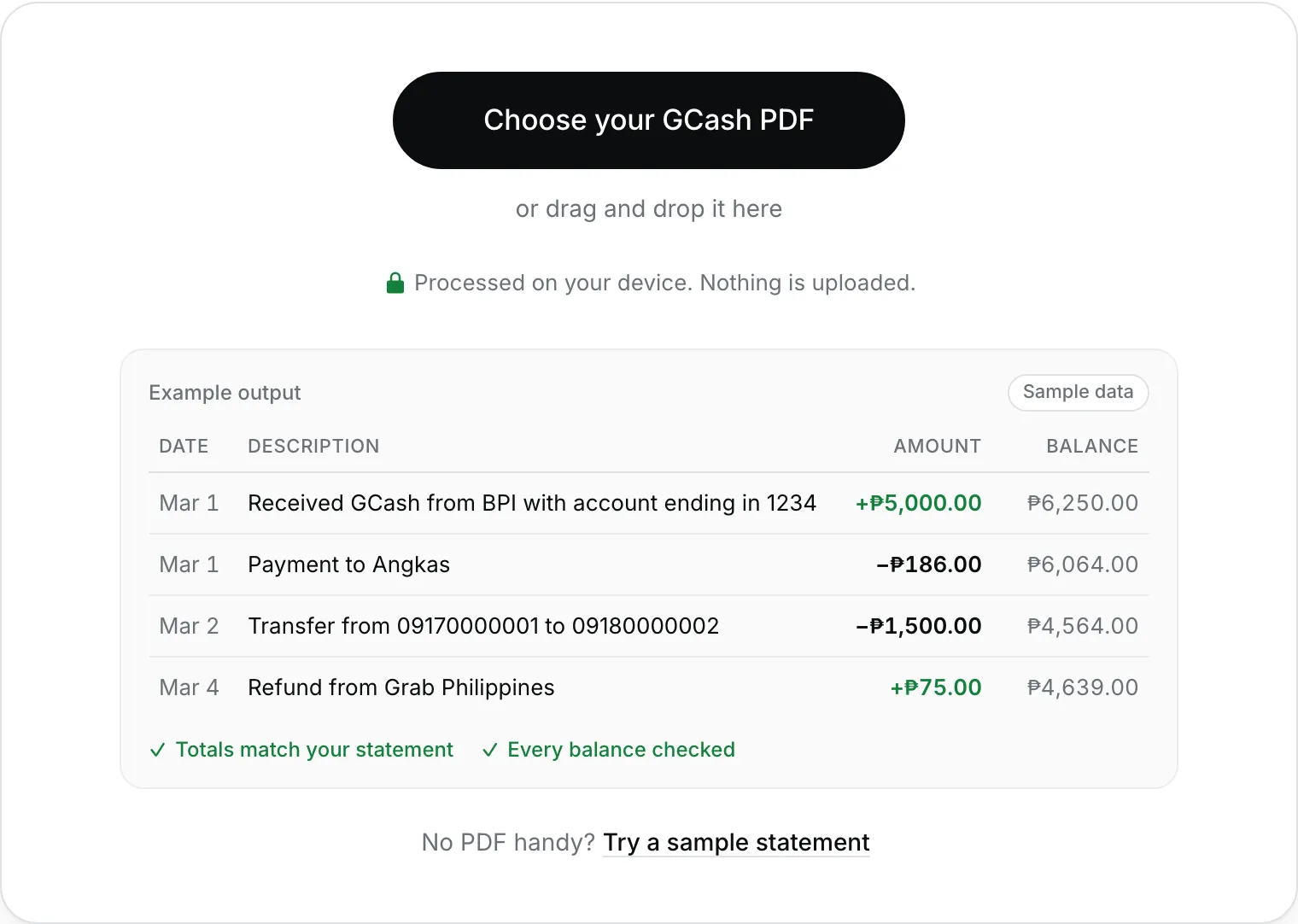
Want to see it first? Press Try a sample statement on the converter to run it on a made-up statement. All the screenshots below come from that sample.
What you need
- Your GCash Transaction History PDF, requested from the GCash app.
- The password that came with the PDF. GCash statements are password-protected.
- A modern browser such as Chrome, Safari, Edge or Firefox, on your phone or computer.
Step 1: Choose your PDF
Open the converter and press Choose your GCash PDF. On a computer you can also drag the file onto the box.
Step 2: Enter the password
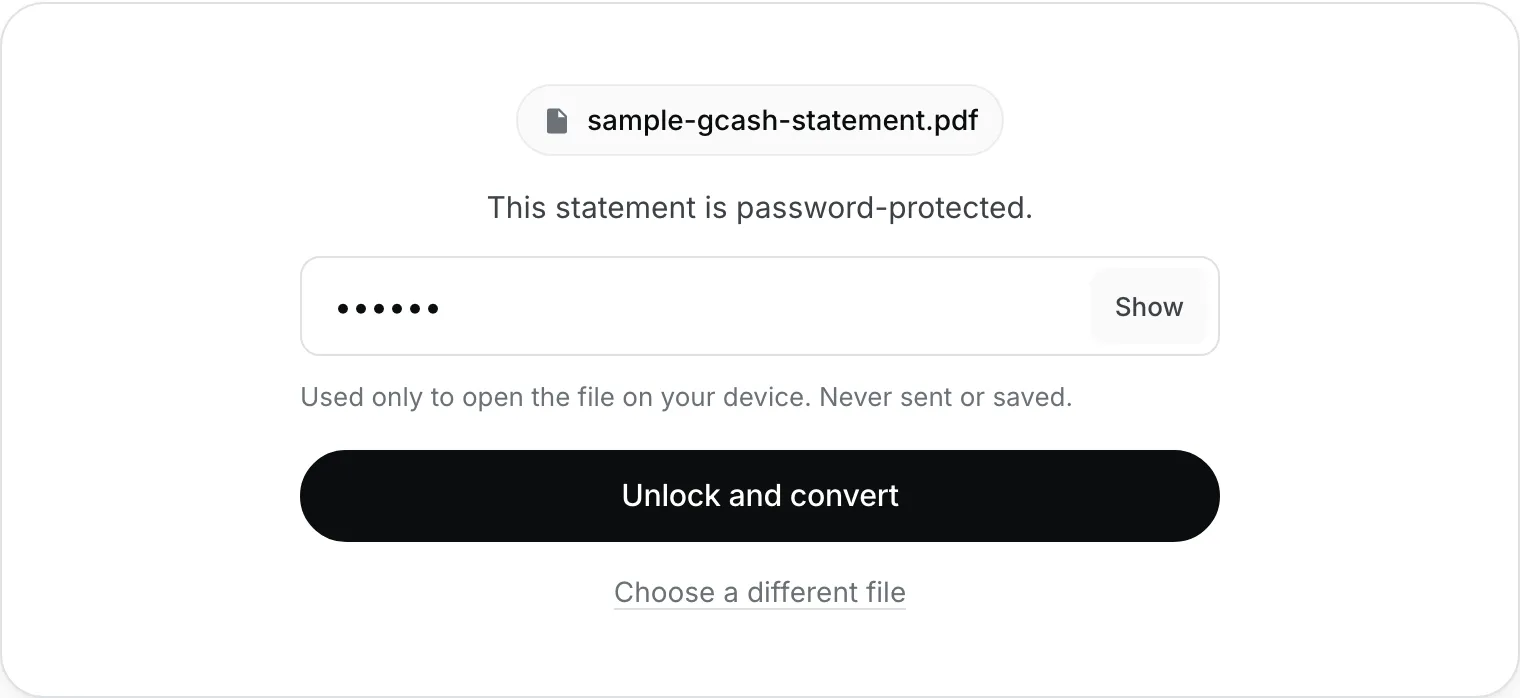
GCash statements are password-protected, so you’ll be asked for the password. Type it and press Unlock and convert. Use Show to check what you typed. If it’s wrong, you’ll be asked to try again.
The password is only used to open the file on your device. It’s never sent anywhere or saved, and it’s cleared after converting.
Step 3: Download Excel or CSV
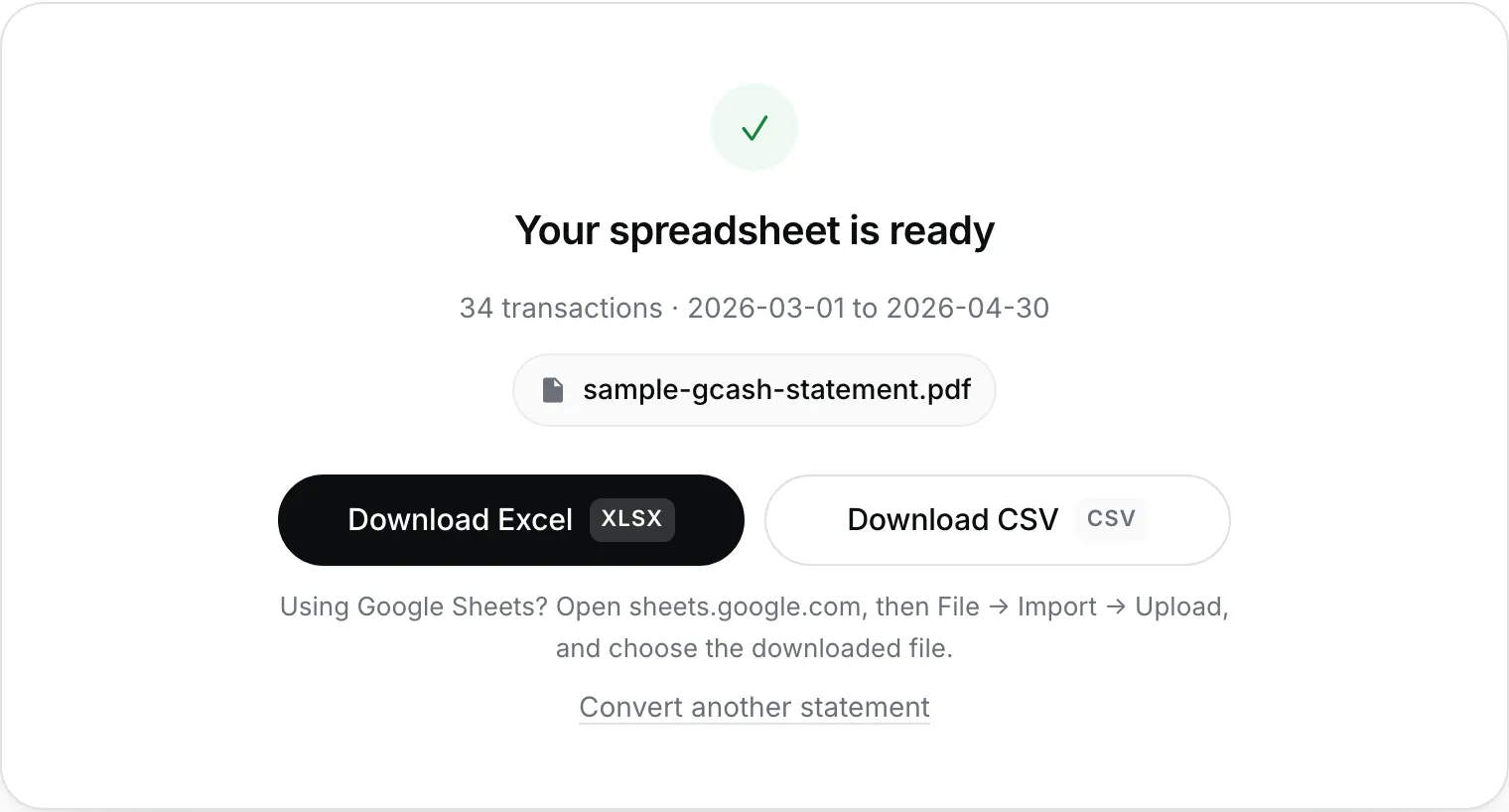
When it’s done, you’ll see Your spreadsheet is ready with the number of transactions and the statement period. Press Download Excel or Download CSV.
The Excel workbook has two sheets:
| Sheet | What’s in it |
|---|---|
| Transactions | Date, time, description, reference no., debit, credit, balance, balance check, notes, with filters and a frozen header |
| Summary | Period, starting and ending balance, totals, accuracy checks, and money in/out per month |
The CSV opens in Excel, Google Sheets, Numbers and most accounting tools.
Step 4: Check the results against your PDF
Below the download buttons you’ll find the statement details. Use them to make sure everything was read correctly before you rely on the spreadsheet.
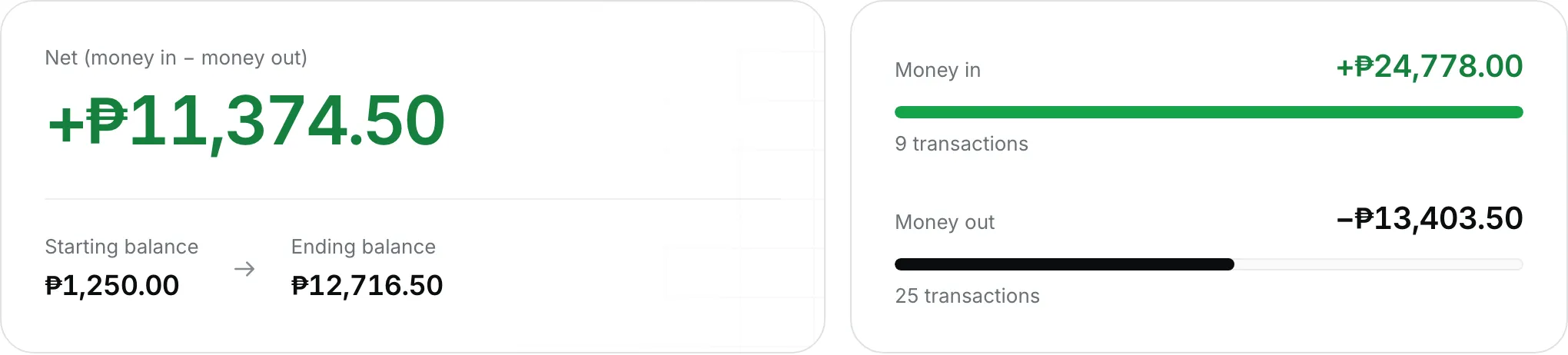
Overview. Money in and money out for the whole period, the net, and your starting and ending balance.
Cross-check with your PDF. The totals printed at the end of your statement, next to the totals calculated from every row. A ✓ Match on total credit and total debit means every amount was read correctly.
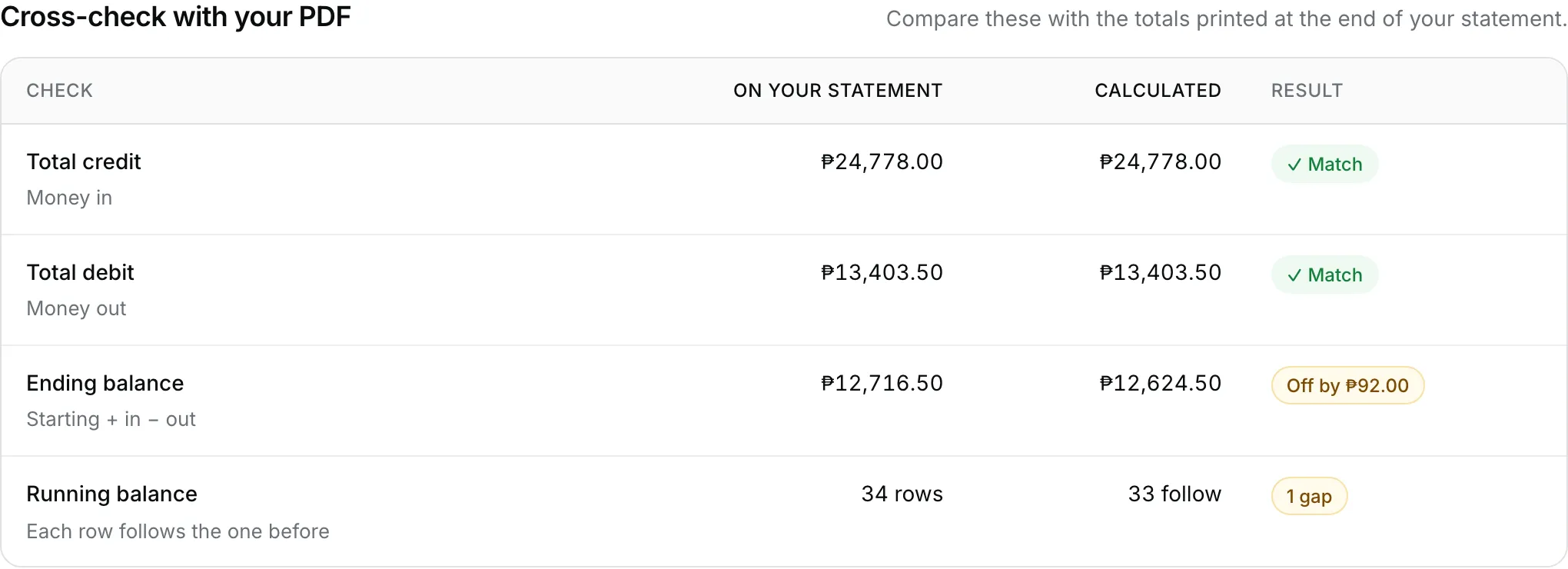
Rows to review. Sometimes a statement lists a transaction but its running balance doesn’t change, or changes by a different amount. WalletToExcel keeps GCash’s figures exactly as printed and points those rows out. Press Show rows to review to see only them, then compare them with the GCash app.

Transactions. Every row, 20 per page. Filter by Money in, Money out or Needs review, pick a month, or search by description or reference number to find a row from your PDF quickly.

Step 5: Open it
- Excel: open the downloaded file.
- Google Sheets: go to sheets.google.com, then File → Import → Upload, and choose the downloaded file. If you upload the Excel file, you get both sheets.
Troubleshooting
- Asked for a password: type the password that came with your statement, then press Unlock and convert. If it says “Wrong password”, check uppercase letters and extra spaces.
- “This PDF has no readable text”: screenshots and scanned images can’t be converted. Use the original PDF from GCash.
- “This doesn’t look like a GCash Transaction History PDF”: only GCash statements are supported for now.
- Some rows say “Balance unchanged”: see Step 4. The figures come straight from your statement; nothing is changed.